Fresh Roasted
.SVG
.GIF
An AI SVG generator for pure vector badges, stamps & cut files. Inspect, recolor and animate your artwork.

Coffee stamp
Bakery stamp
Candle stamp
Outdoor emblem
Hot sauce crest
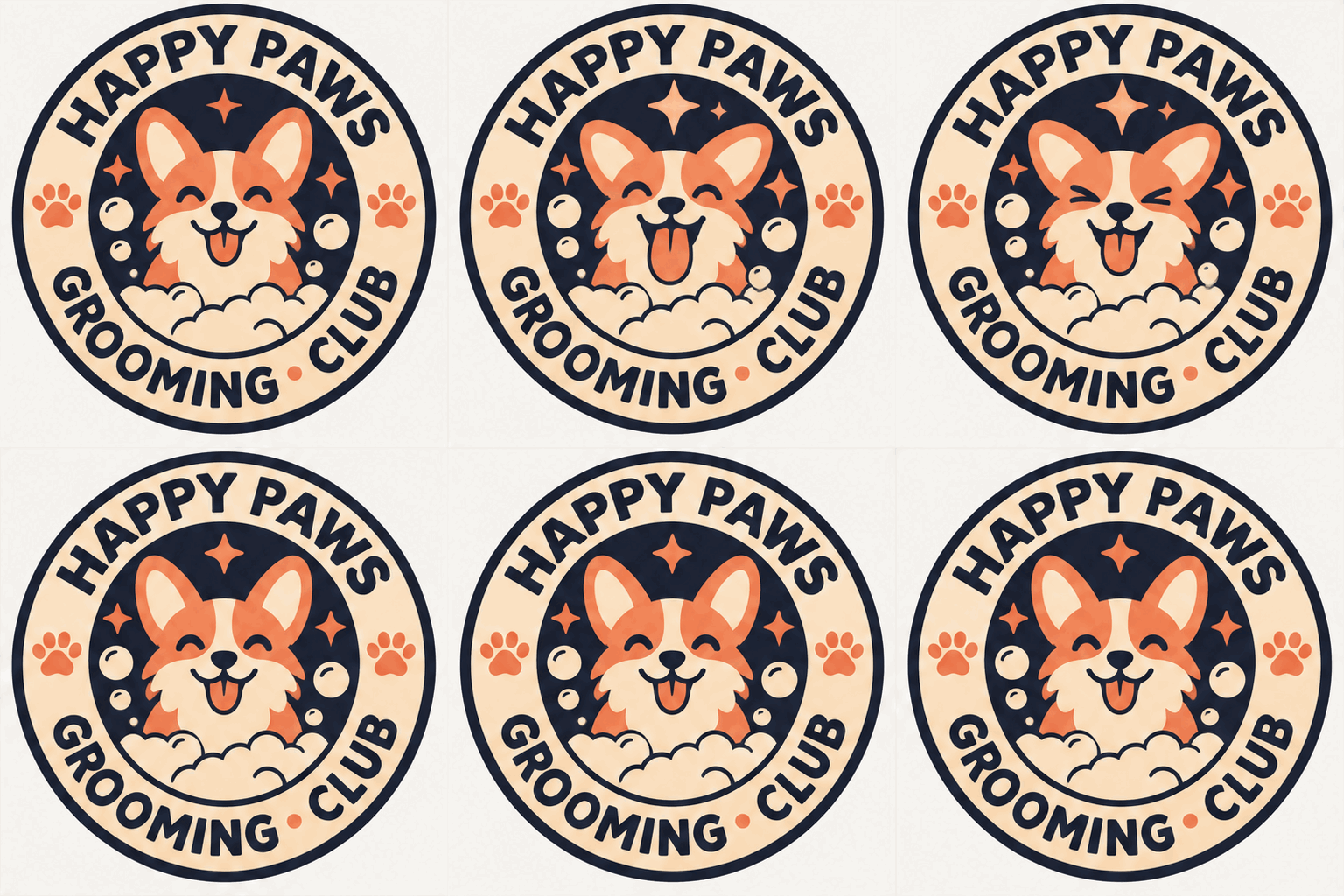
Pet care emblem
Monstera cut-file
Camper decal
Café icon pack
Skincare icon pack
| Step | Old way | SVGBadge |
|---|---|---|
| First draft | Blank artboards and pen tools | Describe your idea |
| Production file | Fuzzy PNG exports | Outlined SVG paths |
| Motion | A separate animation project | One-tap looping GIF |
A useful vector begins with a clear job: a shop badge, a packaging mark, a vinyl decal or a small family of icons. This AI SVG generator gives independent makers a visual starting point and an inspection stage for the resulting paths. Treat the first proof as artwork to evaluate, rather than a manufacturing approval. Decide where the design will appear, how large it will be and whether it must survive in one color before writing your brief.
Choose a format, enter the exact brand name and keep the tagline short. Describe one central subject, a border style and a small palette. For a garden shop, try crossed shears with one leafy stem inside a simple crest. Avoid asking for a whole landscape, tiny lettering and six decorative motifs at once. A focused composition leaves room for recognizable silhouettes. Keep a copy of the wording so you can compare later attempts against the same practical goal.
Look at the overall silhouette first, then open Wireframe and inspect at 4×. Follow the contours around letters, enclosed spaces and narrow joins. The path count is a useful clue about complexity, but it does not prove that all pieces connect. Confirm that the result contains vector paths rather than an embedded bitmap. Check a small preview too, because a design that looks impressive enlarged may become muddy on a label.
Use the shared palette swatches to test dark ink on light stock and light ink on a dark surface. The preview background helps judge contrast; it is not a substitute for a physical proof. The AI SVG generator can also send your current design into an animation request when motion suits the job. Use clear filenames that include the brand, purpose and revision.
Open the downloaded SVG in your intended vector editor or production software. Confirm dimensions there, since a viewBox describes an internal coordinate system rather than a finished physical size. Check whether the recipient expects filled outlines, cut contours or another format. For cutting, review bridges and small gaps at the final scale. For printing, ask the supplier about minimum detail and color handling. Run a sample on the actual material before ordering a batch, especially when lettering is small or the surface is textured.
A coffee roaster might need a single ink stamp for paper bags, while a plant shop needs a connected leaf decal for reusable pots. A café can use four related icons across a menu and its online ordering page. An outdoor goods shop might pair a static emblem on a hangtag with a moving illustration online. Match the format to the delivery surface first. Reusing one complicated badge everywhere usually creates more cleanup than developing a simpler companion version for small applications.
Before approving artwork, check spelling, contrast, silhouette, small details and the final dimensions. Compare the SVG against your original brief rather than against an attractive screen mockup alone. If a print shop or fabricator will finish the job, send the production file together with a size note and a plain preview. The AI SVG generator helps create and inspect artwork; your supplier still defines the requirements for their process. Retain the source file so future packaging changes do not require rebuilding the entire identity.
Clean downloads contain outlined SVG paths rather than a PNG wrapped inside an SVG file. Inspect the path and raster indicators in the studio, then check the downloaded file in your editor. A real vector can scale cleanly, but the design still needs a review for spelling, shape quality and production suitability.
Samples are free to inspect, enlarge and recolor. A verified guest can request one watermarked preview every 24 hours, subject to shared capacity and human verification. A clean SVG unlock costs one credit; paid generation includes that unlock. Check the pricing page for the available credit packs before purchasing.
Start with the intended product, one central object and a clear style constraint. For example, ask for a bold mountain emblem with two pine trees and generous lettering. Put the brand name in its own field, use a short tagline and avoid requesting fine decorative details that will disappear at the intended size.
SVG artwork can have an empty background around its paths. Inspect your result to see whether a background shape is actually part of the design. The mat, grid, kraft and light studio surfaces are preview aids. Confirm transparency in the application where you will place the downloaded file.
Choose the cutting format and review the actual contours, bridges and final dimensions before import. Compatibility depends on the software and workflow you use, not simply on the SVG extension. Begin with a small material test. For a stencil, enclosed centers need connections; adhesive vinyl may use separate pieces on transfer tape.
Lettering in the clean SVG is outlined artwork rather than a live font field. You can edit its paths in a vector editor, or replace it with properly licensed type and outline the replacement before handoff. Proofread the design before manufacturing, since spelling errors cannot be repaired by scaling the artwork.
Each detected SVG color has a swatch. Editing it updates matching artwork colors, and Reset restores the current design palette. Test contrast against several preview backgrounds. Screen colors do not guarantee a particular printed result, so approve a material proof when accurate packaging color is important.
The service permits commercial use of generated designs. Review the output and any third-party rights before selling products, especially if your brief includes a recognizable character, existing logo or protected name. Keep the final approved file and a record of your own edits for later manufacturing revisions.
Use SVG when crisp static artwork and scalable display matter. Use a GIF when a small amount of motion helps show the brand character. Animation costs two credits for an existing design. Keep the static vector master, test the animation on the destination and provide a static alternative where movement is distracting.